

This upon hitting the enter key >

turns into this >

It should actually start a new line with indentation instead.

When I hit enter it becomes this >
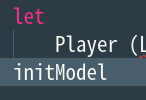
Again it should start a new line with indentation.
How do I make VScode not make a new line?
From this >

The red line indicates where the cursor is.
Into this >

The green line indicates where I want the cursor to be so I can type code like this >
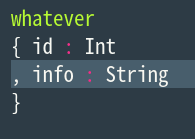
The solution to the enter problem:
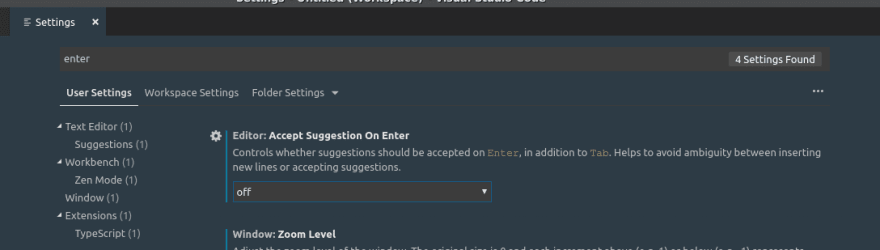
Go to the setting. Type "enter" in the search and turn off "Accept Suggestion On Enter".


Top comments (6)
I've been having this issue too and haven't gotten around to solving it so I'll be following this thread closely. For now I just use shift+enter instead which is honestly pretty annoying.
I have made an update, because I found the solution. I have a question though: When I made an update did you receive a notification?
Nope! I only got notified from this reply.
I do the same thing with shift+enter.
That is an interesting problem. Because of the general scope of the problem, I don't know how helpful it would be, but with snippets, you can control where the cursor lands.
code.visualstudio.com/docs/editor/...
EDIT: I use snippets to avoid VSCode's auto-completion suggestions when writing Jest tests in TypeScript.
I looked into snippets they explain how to work with prefixes at the end they have something about keybinding. But I need somehow to explain vscode that when I hit enter key inside curly braces open them in a certain way. It's a hard.
As I understand putting the cursor in a certain place is an easy part.